How to upload your own art to a Samsung Frame TV
Samsung's Art Store is a paid catalogue, but you do not need it to show your own images. The Frame will display photographs you add yourself, and no subscription is needed for that. This guide covers the two common routes, SmartThings on a phone and a USB drive, the image size to use, how mattes affect the picture, and what to check when an upload fails.
Menu names change between TV model years and app versions, so treat the labels below as a guide and look for a similar label on your own screen.
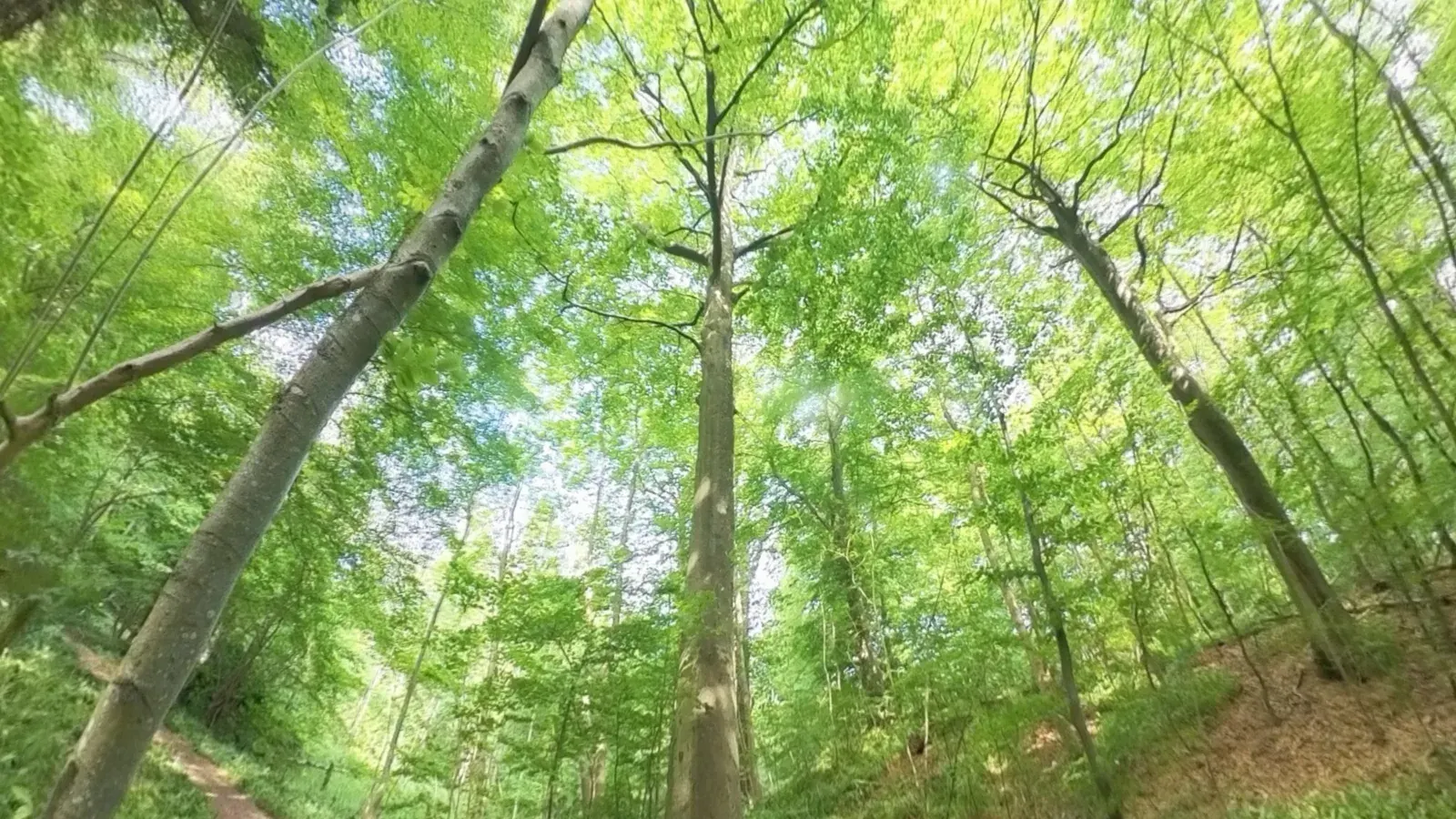
Before you start
- Image size. The Frame has a 16:9 screen with a resolution of 3840 x 2160 px. An image at exactly that size fills the screen without cropping or stretching. All Dream Poster Frame TV files are prepared at 3840 x 2160 px as JPG.
- File format. JPG is the safe choice. It is widely supported and keeps file sizes manageable.
- Network. The TV and your phone should be on the same Wi-Fi network, and the TV is normally signed in to the same Samsung account as the SmartThings app.
- Files on your phone. If you downloaded a ZIP on a computer, move it to the phone first by AirDrop, a cloud folder or a cable, and unzip it there. Avoid sending images through chat apps, which often shrink them.
Upload with the SmartThings app
- Open SmartThings and select your Frame TV from the device list. Make sure the TV is switched on.
- Open Art mode. On many versions this is a tab or button named Art, Art Mode or Frame within the device page.
- Find your own images. Look for My Collection, My Photos or a similar section, and choose the option to add photos.
- Select the images from your phone gallery. You can pick several at once.
- Confirm the upload. The TV copies the images across. A few large files take a short time over Wi-Fi.
- Choose what to show. Select one image to display, or select several and turn on the slideshow option if you want a rotation.
If the upload progress stalls, keep the app open and the screen awake until it finishes.
Upload with a USB drive
A USB drive helps when the app cannot find the TV or when you want to add many images at once.
- Prepare the drive. Format it as FAT32 or exFAT and copy the JPG files to the top level or to one plain folder. Do not leave them inside a ZIP.
- Plug the drive into the TV. Use the USB port on the TV or on its connection box, depending on the model.
- Open Art mode on the TV with the remote and go to your own collection.
- Add from USB where the option appears, then select the images to copy.
Not every model year offers USB import in Art mode. If you do not see the option, use SmartThings instead.
Matte options and how they change the picture
The Frame can add a digital matte, a coloured border that makes the image sit inside a frame, the way a print sits inside a mount. This is where many questions come from.
- No matte. The image fills the whole screen. Use this for 16:9 images at 3840 x 2160 px when you want the photograph edge to edge.
- With a matte. The photograph shrinks inside the border. This suits panoramas and square or portrait crops, which would otherwise be cropped or shown with black bars.
- Colour and style. Matte styles and colours differ by model year. Neutral off-white and warm grey sit quietly beside natural photographs; strong colours draw the eye to the border.
If a picture looks zoomed in or cut off, check the matte setting before assuming the file is wrong.
Common problems and fixes
- The TV does not appear in SmartThings. Check that both devices are on the same Wi-Fi network, turn off any VPN on the phone, update the SmartThings app, and restart the TV.
- The image does not upload. Samsung has applied file size limits for uploaded images. If a large file fails, try uploading a smaller number at a time, and delete older images from the collection to free space.
- The picture looks soft. Make sure the file went across at full size and not through a messaging app. Then view it from normal distance; a photograph that seems soft up close often reads fine from the sofa.
- Colours look washed out or too bright. Adjust brightness and colour tone in the Art mode settings. The Frame adapts to room light, and a dark evening room often needs a lower brightness than the default.
- The image is cropped. Switch the matte off for 16:9 images, or choose a matte for other shapes.
- The TV shows the Samsung catalogue instead of your images. Open the section for your own photos, usually called My Collection, and select your image there. Your uploads are kept separate from the Art Store.
Where to find images that fit
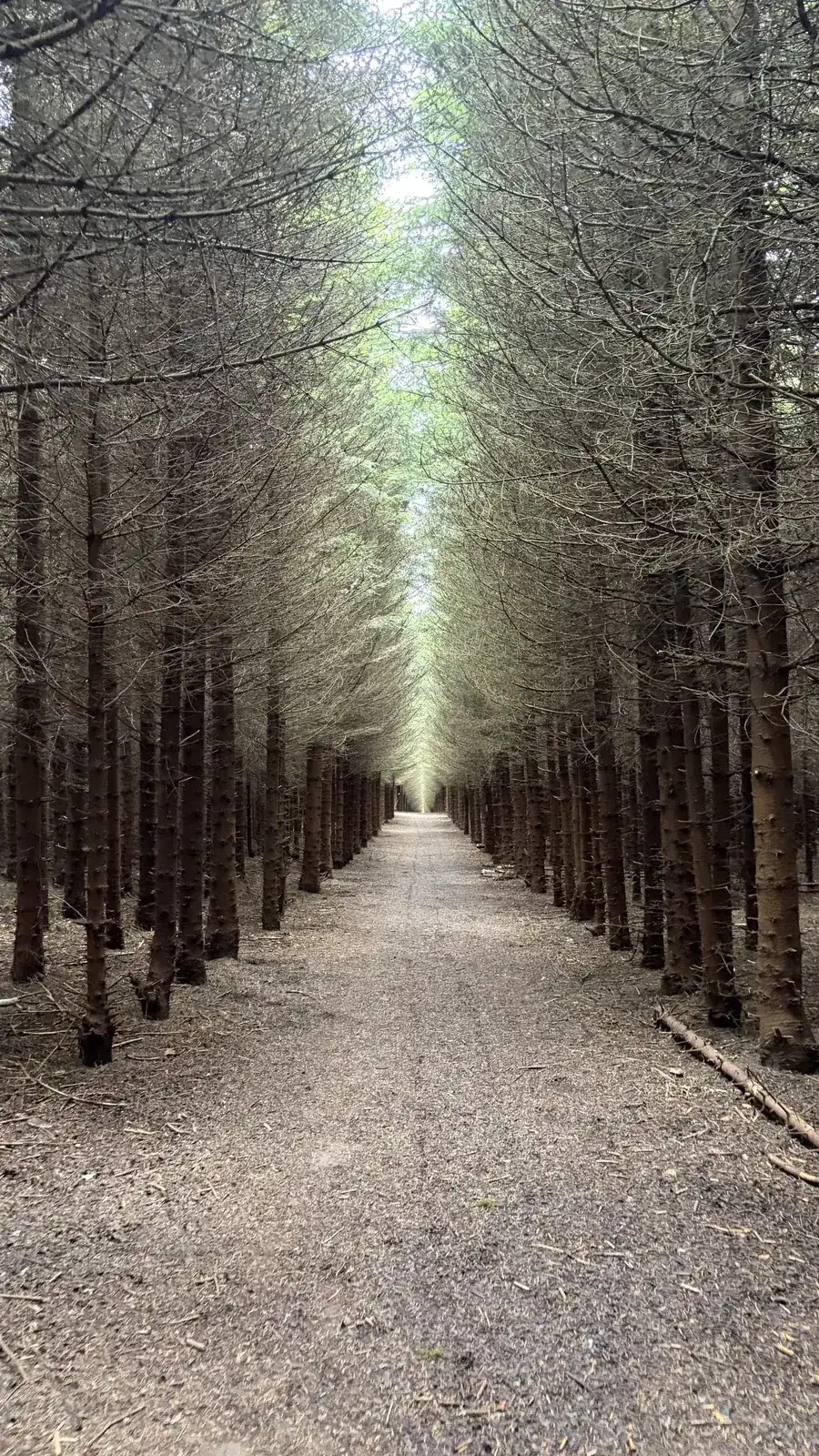
The Frame TV art bundle, 30 Nordic forest photographs is $12 and contains thirty real photographs at 3840 x 2160 px, with a short SmartThings guide. If you would rather start smaller, the winter set and the green forest set are $6 each. Every file comes from a real photograph taken in Danish woodland. For help choosing, read the winter Frame TV art guide.